

Emma
The Social Media Tool I Actually Use: Planable
If you’re managing LinkedIn content for multiple clients, let me save you some time, head on over to Planable as this is my go-to scheduler.
It’s clean, visual, and doesn’t make me want to throw my laptop across the room (always a win). I use it on the free plan, and honestly? It does everything I need as a freelance marketer. I can build out content calendars, schedule posts, and send preview links that look exactly like they will on LinkedIn – no awkward Google Docs or dodgy screenshots.
Even better, I can drop those preview links straight into Slack threads for quick client sign-off. No logins, no chasing. It’s collaborative, super visual, and fits into my workflow without any fuss. If you’re like me and juggling multiple brands, this saves so much time.
You’re welcome.
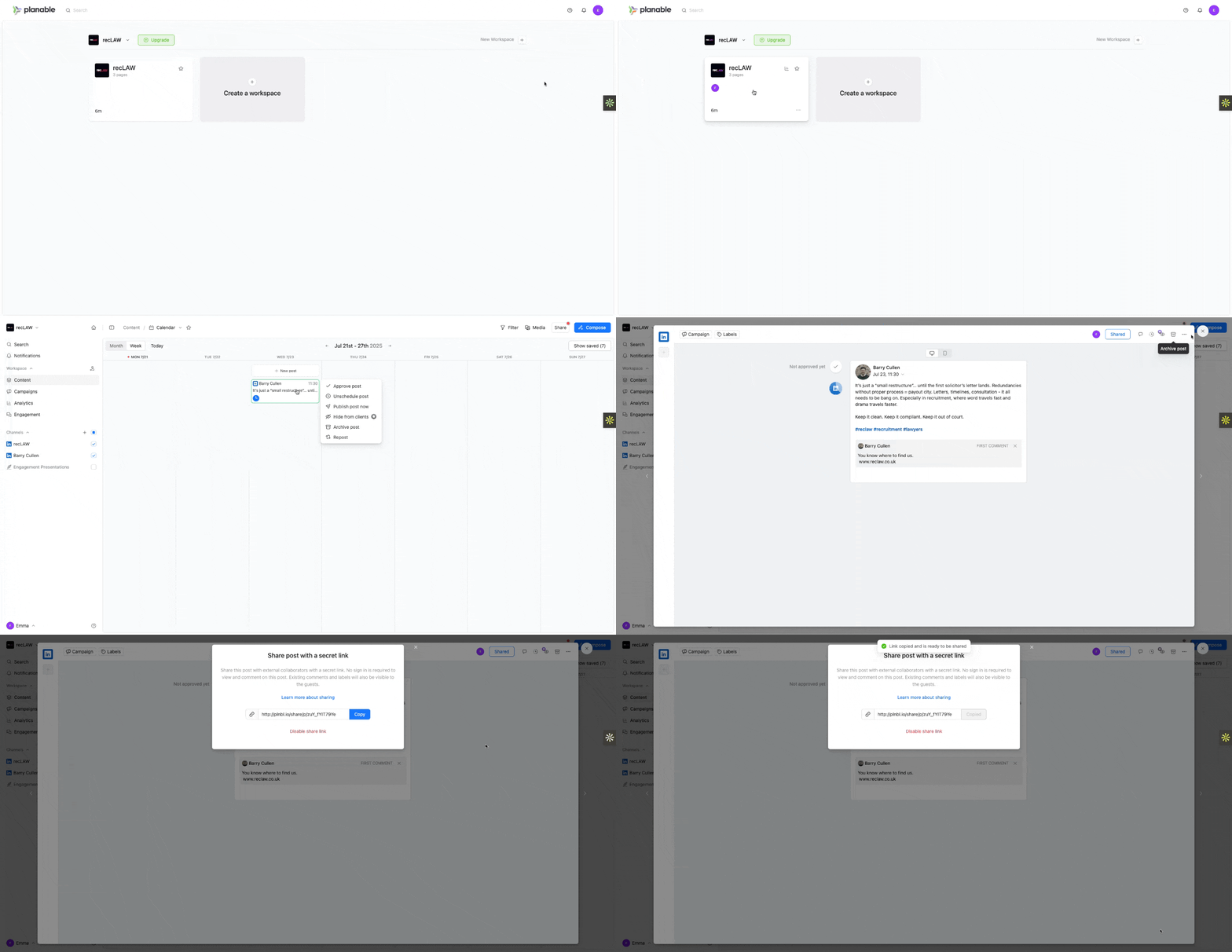
How I Use Planable Step-by-Step
Here’s a quick look at my process for using Planable to manage content for clients:
- Create a workspace for each client so everything stays tidy.
- Upload content in batches – text, images, links, the lot.
- Preview posts exactly how they’ll appear on LinkedIn.
- Share approval links via Slack – no extra client logins needed.
- Schedule once everything’s approved, and you’re done.
No spreadsheets. No email threads. Just a super visual calendar that actually makes content planning feel doable. Their support team’s also great – any time I’ve had a question, the chatbox inside the platform gets me an answer quickly.
